
Table of Contents
- Quick Answer
- Before You Start
- Three Ways to Connect an HP Printer to Wi-Fi
- Safety Precautions Before You Start
- Common Connection Problems (and What They Usually Mean)
- Where to Find HP Setup Resources
- What You’ll Need
- Compatibility & System Requirements
- Quick Fixes If Your HP Printer Won’t Connect
- Step-by-Step: How to Connect Your HP Printer to Wi-Fi
- Does Wireless Setup Affect Your Warranty?
- Keeping Your HP Printer’s Wi-Fi Connection Reliable
- Conclusion
- FAQs
Every HP printer, from a compact DeskJet to a Smart Tank all-in-one, connects to Wi-Fi the same basic way: put the printer into wireless setup mode, then hand it your network name and password through an app, the control panel, or a router button. The tricky part is knowing which of those three routes fits your printer and your situation — this guide covers all of them.
Quick Answer
To connect an HP printer to Wi-Fi, install the HP app (formerly HP Smart), open it, tap the plus icon, and follow the guided setup to select your network and enter your password. If your printer has a touchscreen, you can instead go to Settings > Network > Wireless Setup Wizard directly on the printer. Most models finish connecting in under five minutes.
Before You Start
- The printer is powered on and sitting within normal Wi-Fi range of your router — not in another room or floor.
- You know your Wi-Fi network name (SSID) and password exactly, including capitalization.
- Your router is broadcasting a 2.4GHz network — most HP printers connect on 2.4GHz only, even if your router also offers a 5GHz band.
- Any ink or toner cartridges are installed and initial print-head calibration on the printer’s own screen is complete.
- You’re not trying to connect over a guest network or hotel/campus Wi-Fi — those typically block device-to-device discovery, which HP’s wireless setup depends on.
Three Ways to Connect an HP Printer to Wi-Fi
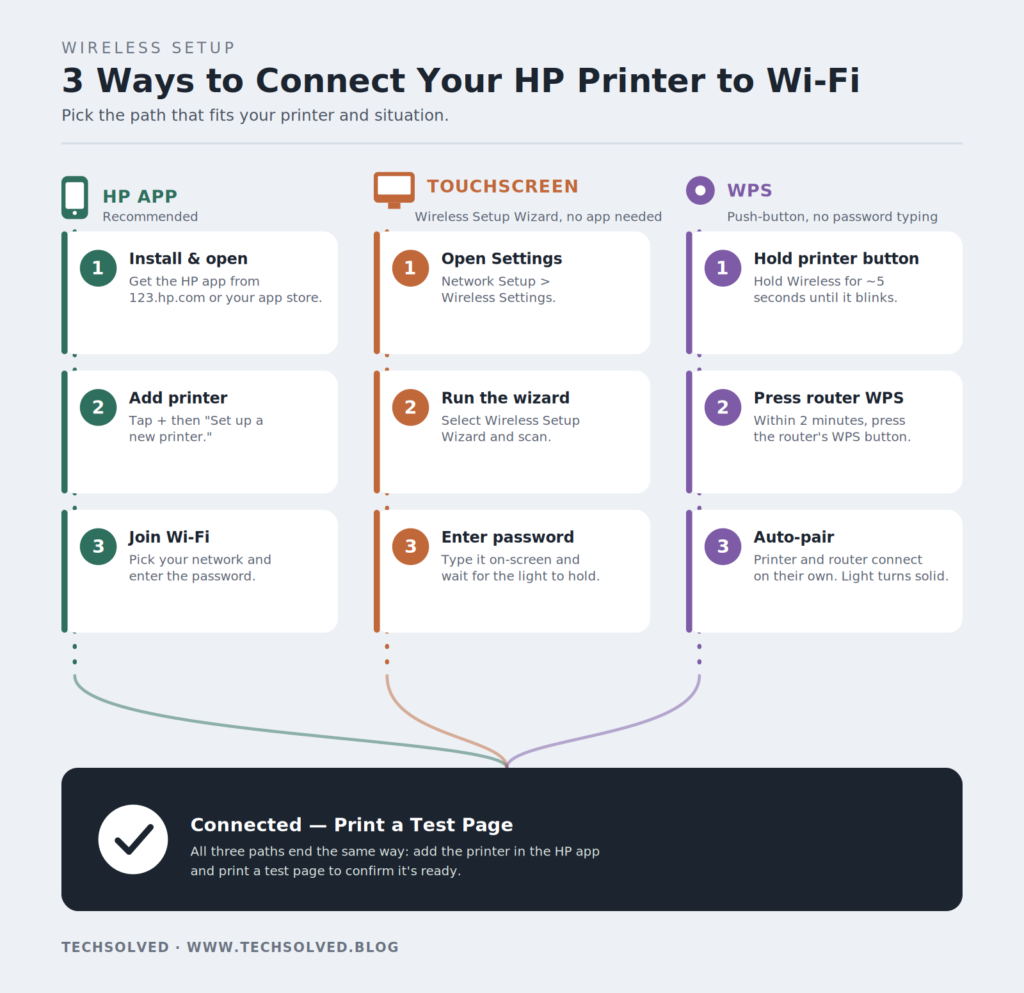
HP app (recommended): HP’s official setup app — now called the HP app, replacing the older HP Smart app. It walks you through detecting the printer, joining it to Wi-Fi, and installing drivers in one guided flow.
Control panel Wireless Setup Wizard: On printers with a touchscreen, you can skip the app and connect straight from the printer — useful if your phone isn’t cooperating.
WPS (Wi-Fi Protected Setup): A push-button pairing method available on most routers and printers. Hold the printer’s wireless button until it blinks, press the router’s WPS button, and the two connect automatically with no password typing.
If you’re on a network where device discovery is disabled (guest or managed networks), none of these three will work — connect your computer temporarily to the printer’s own setup signal and use its Embedded Web Server (EWS) to configure the connection manually, or print over USB and use Wi-Fi Direct instead.
Safety Precautions Before You Start
- Use only the power adapter that shipped with the printer — third-party adapters can deliver the wrong voltage.
- Wireless setup mode has a limited window; if two hours pass without a connection, most HP printers exit setup mode and need to be restarted.
- Don’t share your Wi-Fi password over unsecured channels — enter it directly into the app or printer screen.
- For WPS, confirm you’re pressing the router’s actual WPS button, not a general reset button that can wipe router settings.
- Keep the printer’s touchscreen and cartridge access doors dry while handling cables during setup.
Common Connection Problems (and What They Usually Mean)
| Symptom | Likely Cause |
|---|---|
| Printer doesn’t appear in the HP app | Printer isn’t in wireless setup mode, or phone/computer is on a different network |
| Wireless light blinks but never turns solid | Wrong Wi-Fi password, or printer is trying to join a 5GHz-only network |
| Printer connects, then shows “Offline” later | Sleep mode, weak signal, or the router assigned it a new IP address |
| HP app says “Printer Not Found” during setup | Bluetooth or location services disabled on the mobile device, blocking discovery |
| WPS times out without connecting | Router’s WPS is disabled, or too much time passed between pressing both buttons |
Where to Find HP Setup Resources
HP’s own resources are the most reliable place to confirm model-specific menu wording, since it varies slightly across printer families:
- HP app / HP Smart download: 123.hp.com or your printer model’s page on hp.com
- HP Support: support.hp.com, searched by exact model number
- Wireless troubleshooting: HP’s “printer setup (Wi-Fi network)” support document, searchable by model
[Internal link: How to find your exact HP printer model number]
What You’ll Need
- A smartphone, tablet, or computer with the HP app installed, or direct access to the printer’s touchscreen
- Your exact Wi-Fi network name (SSID) and password
- A 2.4GHz Wi-Fi network (confirm your router broadcasts one if it uses a combined or 5GHz-only band)
- Bluetooth and location services enabled on your phone, if using the HP app for setup
- Physical access to your router, if using the WPS button method
Compatibility & System Requirements
- HP app: Available for Windows, Mac, iOS, and Android. HP is transitioning users from the older HP Smart app to the unified HP app — HP Smart still works if it’s already installed, but new setups increasingly default to the HP app.
- Printer age: Most wireless-enabled HP printers released since around 2014 support the current HP app.
- Network band: Most HP consumer printers only connect on 2.4GHz, not 5GHz — the most common reason setup fails on routers broadcasting a combined or 5GHz-only network name.
- Guest/managed networks: Hotel, campus, and many corporate Wi-Fi networks block the discovery HP’s setup relies on; use Wi-Fi Direct or a wired USB connection instead.
Quick Fixes If Your HP Printer Won’t Connect
- Restart everything. Power-cycle the printer, restart your router, and reopen the HP app — this resolves more failed connections than any other step.
- Confirm the 2.4GHz band. If your router shows two network names, make sure both your device and the printer join the 2.4GHz one.
- Re-enter wireless setup mode. If more than two hours have passed, the printer likely exited setup mode — restart the wizard or hold the wireless button again.
- Move the printer closer to the router temporarily for setup, then relocate it once connected if signal strength allows.
- Update the HP app or firmware. An outdated app or firmware can fail to complete pairing even with correct network details.
Step-by-Step: How to Connect Your HP Printer to Wi-Fi
Method 1: Using the HP App (Recommended)
- Download the HP app from 123.hp.com, your app store, or hp.com — it replaces the older HP Smart app on most devices.
- Power on the printer and make sure it’s near your router.
- Open the HP app, tap the plus (+) icon, and choose Set up a new printer.
- Select your printer model when it appears; if it’s not found, follow the app’s prompt to put the printer into wireless setup mode manually.
- Choose your Wi-Fi network from the list and enter the password when prompted.
- Wait for the app to confirm the connection and finish installing drivers, then print a test page from within the app.
Method 2: Using the Printer’s Touchscreen (Wireless Setup Wizard)
- On the printer’s control panel, open Settings (often a gear icon).
- Go to Network Setup > Wireless Settings > Wireless Setup Wizard.
- Select your Wi-Fi network from the scanned list.
- Enter your Wi-Fi password using the on-screen keyboard and confirm.
- Wait for the wireless light to turn solid, confirming the connection — this can take up to a minute.
- Add the now-connected printer in the HP app on your phone or computer to finish installing drivers.
Method 3: Using WPS (Push-Button Setup)
- On the printer’s control panel or button panel, press and hold the Wireless button for about 5 seconds until the wireless light starts blinking, or select Wi-Fi Protected Setup > Push Button from the Network menu on touchscreen models.
- Within two minutes, press the WPS button on your router.
- The printer and router will pair automatically — the wireless light turns solid once connected.
- Open the HP app and add the now-connected printer to finish setup and install drivers.
If You’re On a Guest or Restricted Network
- Print a network configuration page from the printer (usually via Setup > Reports > Network Configuration Page) to find its IP address, or connect the printer to the network’s setup Wi-Fi signal first if prompted.
- On a computer connected to the same network, open a browser and enter the printer’s IP address to reach its Embedded Web Server (EWS).
- Use the EWS’s Wireless Setup Wizard to manually configure the connection where standard discovery is blocked.
- Alternatively, connect the printer directly to one computer via USB and use Wi-Fi Direct from the printer’s menu to print wirelessly from other devices without joining the restricted network.
Does Wireless Setup Affect Your Warranty?
No — connecting an HP printer to Wi-Fi through the HP app, the touchscreen, or WPS is standard, intended use and does not affect the manufacturer’s warranty. Warranty coverage is typically only affected by physical damage, non-HP power adapters, or, on some models, non-HP ink or toner cartridges. Check your printer’s specific HP warranty terms for cartridge-related exclusions.
Keeping Your HP Printer’s Wi-Fi Connection Reliable
- Keep the HP app and printer firmware updated — HP periodically pushes updates that improve Wi-Fi stability.
- If the printer is far from the router, use a Wi-Fi extender rather than repeatedly re-adding the printer after drops.
- Assign the printer a reserved IP address in your router settings to prevent “offline” errors after the router reassigns addresses.
- Avoid moving the printer between rooms without checking signal strength — a wall or two can cause intermittent disconnects.
- After a router replacement or Wi-Fi password change, re-run the Wireless Setup Wizard rather than expecting an automatic reconnect.
[Internal link: How to fix an HP printer stuck offline] [Internal link: How to use HP Wi-Fi Direct to print without a network]
Conclusion
Getting an HP printer onto Wi-Fi comes down to picking the right method for your setup — the HP app for the smoothest guided experience, the touchscreen Wireless Setup Wizard if you’d rather skip the app, or WPS for a fast, password-free pairing. Whichever route you take, the fundamentals are the same: 2.4GHz network, correct password, and a printer that’s actually in setup mode. Work through the quick fixes above if the connection doesn’t take on the first try, and you’ll be printing wirelessly in a few minutes.
Still stuck, or want more printer and tech walkthroughs like this one? TechSolved covers step-by-step setup guides, troubleshooting, and fixes for the everyday tech in your home and office. Visit www.techsolved.blog for more guides like this — and if this one got your printer online, share it with someone else fighting the same Wi-Fi setup screen.
FAQs
Do I need the HP app to connect my printer to Wi-Fi?
No. The touchscreen Wireless Setup Wizard or the WPS button method both connect the printer to Wi-Fi without installing any app, though you’ll still want the HP app or another driver install afterward to print from a computer.
Why does my HP printer keep disconnecting from Wi-Fi?
This is usually a weak signal, a router that reassigns IP addresses periodically, or the printer’s power-saving mode dropping the connection during idle periods. Assigning the printer a reserved IP address in your router settings resolves most repeated disconnects.
Can I connect an HP printer to Wi-Fi without a smartphone?
Yes. Any HP printer with a touchscreen or control panel display can connect entirely through its own Wireless Setup Wizard, with no phone or computer required during the connection step itself.
Why won’t my HP printer find my Wi-Fi network? The most common reason is that the router is broadcasting only a 5GHz network, which most HP printers can’t join — check that your router also broadcasts a separate 2.4GHz network name and connect to that one.
Is WPS safe to use for my HP printer?
Yes, WPS is a standard, secure pairing method supported by most modern routers. Its main limitation is that some newer mesh Wi-Fi systems don’t support WPS at all, in which case the HP app or Wireless Setup Wizard are the better options.
Can I connect my HP printer to a hotel or guest Wi-Fi network?
Usually not through standard setup, since guest networks typically block device discovery. Use HP’s Wi-Fi Direct feature to print directly from your device to the printer without joining the guest network at all.
What’s the difference between the HP app and HP Smart?
The HP app is HP’s newer, unified app that’s replacing HP Smart across most devices, combining printer setup with broader device management. If HP Smart is already installed and working, it still functions, but HP is directing new setups toward the HP app.