
Table of Contents
- Quick Answer
- Signs You’re Ready to Connect Your Printer
- Wired vs. Wireless: Which Connection Should You Use?
- Safety Precautions Before You Start
- Common Connection Problems (and What They Usually Mean)
- Where to Find Your Printer’s Manual
- What You’ll Need
- Compatibility & System Requirements
- Quick Fixes If Your Printer Won’t Connect
- Step-by-Step: How to Hook Up a Printer to a Computer
- Does Connecting a Printer Affect Its Warranty?
- Keeping the Connection Reliable
- FAQs
Setting up a new printer — or reconnecting an old one to a new laptop — should take five minutes, but it’s one of the most commonly searched tech questions for a reason: the “right” method depends on whether your printer is wired or wireless, and whether you’re on Windows or a Mac. This guide walks through every path so you can get from unboxing to a printed test page without guesswork.
Quick Answer
To hook up a printer to a computer, connect it via USB cable for an instant wired connection, or join it to your Wi-Fi network for wireless printing. Then open Settings > Bluetooth & devices > Printers & scanners on Windows, or System Settings > Printers & Scanners on a Mac, click Add device, select your printer, and let the computer install the driver automatically.
Signs You’re Ready to Connect Your Printer
Before diving into settings menus, confirm the basics — most “my printer won’t connect” tickets trace back to one of these:
- The printer is plugged into power and powered on (check for a lit control panel or display).
- Any protective tape or packaging inside the ink/toner compartment has been removed.
- Ink cartridges or a toner cartridge are installed and any startup calibration prompts on the printer’s own screen have been completed.
- For wireless setup, your Wi-Fi network name and password are on hand.
- For wired setup, you have a compatible USB cable (many printers don’t include one in the box).
If all of that checks out, you’re ready to connect it to a computer using either a cable or your home network.
Wired vs. Wireless: Which Connection Should You Use?
There are four realistic ways to hook up a printer to a computer, and the right one depends on your printer’s hardware and how you plan to use it.
USB cable (wired): The most reliable option. Plug in, and most modern printers install themselves within seconds. Best for single-computer setups or older printers with no wireless radio.
Wi-Fi (wireless, same network): The printer joins your home or office network directly, and any computer on that network can print to it without a cable. Best for households and shared spaces.
Bluetooth: Common on compact “instant” photo printers. Short range, no network required, but rarely used for full-size home or office printers.
Network/shared printer: The printer connects to one computer (or a print server) and is shared so others on the network can use it remotely. Common in small offices.
Most all-in-one printers sold in the last several years support both USB and Wi-Fi, so you can start wired for a guaranteed connection, then switch to wireless later.
Safety Precautions Before You Start
- Only use the power cable and adapter that came with the printer — mismatched voltage can damage the unit.
- Keep liquids away from the printer and any open USB ports while connecting cables.
- Unplug the printer before clearing a paper jam or accessing internal components.
- If using a USB hub, use a powered hub for printers; unpowered hubs can cause intermittent connection drops or failed driver installs.
- Avoid running Wi-Fi setup near sources of interference (microwaves, cordless phones) — it can cause the printer to drop mid-setup.
Common Connection Problems (and What They Usually Mean)
| Symptom | Likely Cause |
|---|---|
| Printer doesn’t appear in the “Add device” list | Not powered on, not on the same Wi-Fi network, or Bluetooth/network discovery is off |
| Printer shows as “Offline” after connecting | Sleep mode, weak Wi-Fi signal, or a stale IP address |
| Windows says “Driver unavailable” | No internet connection during setup, or the model is too new/old for the built-in driver |
| Mac doesn’t detect a USB printer | Faulty cable, need for a USB-C adapter, or the printer needs a software update first |
| Printer connects but print jobs stay in queue | A second, disconnected instance of the same printer was added by mistake |
Where to Find Your Printer’s Manual
Every major printer brand hosts setup guides and driver downloads by model number, which is the fastest way to get manufacturer-specific instructions (the exact menu wording on the printer’s own screen varies by model):
- HP: HP Smart app or support.hp.com, searched by model number
- Canon: Canon USA/Global support site, under “Drivers & Downloads”
- Epson: epson.com support page, model-specific setup guide
- Brother: support.brother.com, “Network Setup” or “Wireless Setup” section
[Internal link: Where to find your exact printer model and serial number]
What You’ll Need
- A USB-A-to-USB-B cable (most standard printers) or a USB-C cable (newer compact printers) — check the port on the back of your printer before buying one
- A USB-C-to-USB-A adapter if your laptop only has USB-C ports and your printer cable is USB-A
- Your Wi-Fi network name (SSID) and password, for wireless setup
- An active internet connection on the computer, so it can download the correct driver
- The printer’s own control panel or touchscreen, to join it to Wi-Fi
Compatibility & System Requirements
- Windows: Windows 10 and 11 include built-in printer support and pull most drivers automatically through Windows Update.
- macOS: Recent versions (Sonoma and later) support AirPrint printers with zero driver installation; non-AirPrint models may need the manufacturer’s software.
- Managed networks: Some workplace or campus networks block personal devices from adding shared printers — check with IT if one never appears.
- Older printers: Models older than roughly 8–10 years may lack a modern driver; check the manufacturer’s site for a legacy or “universal” driver first.
Quick Fixes If Your Printer Won’t Connect
If the printer isn’t showing up during setup, work through these before assuming it’s defective:
- Restart both devices. Power-cycle the printer and restart the computer — this clears more connection issues than any other single step.
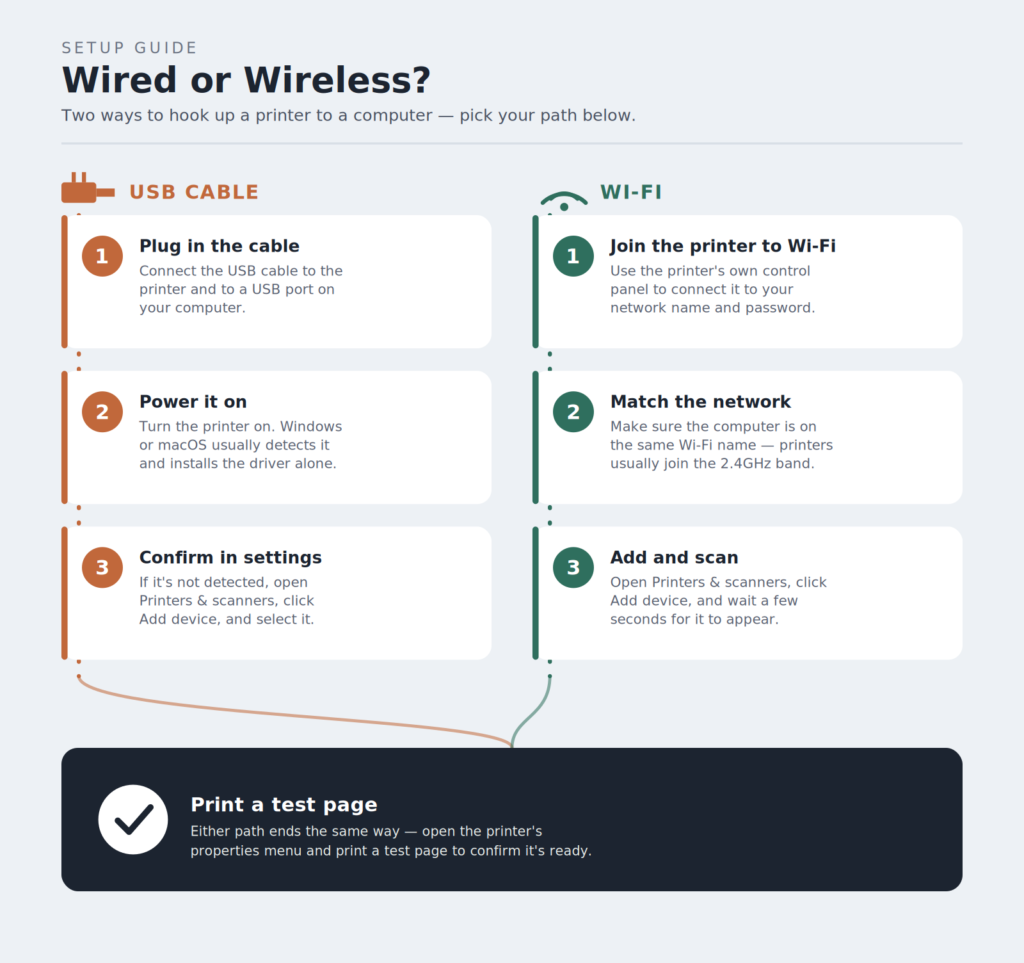
- Confirm the same network. For Wi-Fi setup, the printer and computer must be on the exact same network name, and printers almost always join the 2.4GHz band rather than 5GHz if your router broadcasts both.
- Check the cable and port. Swap the USB cable or try a different port directly on the computer, not through an unpowered hub.
- Re-run discovery. Remove the printer from the list (if it appears as “Offline” or duplicated) and click Add device again rather than troubleshooting a stale entry.
- Update drivers manually. If Windows or macOS can’t find a driver automatically, download the current one from the manufacturer’s support page for your exact model.
Step-by-Step: How to Hook Up a Printer to a Computer
Connect a Printer to Windows via USB
- Plug the USB cable into the printer and into a USB port on the computer, then power the printer on.
- Windows typically detects wired printers automatically and installs a driver within a minute.
- If it doesn’t appear, open Settings > Bluetooth & devices > Printers & scanners.
- Click Add device and wait for the printer to populate in the list.
- Select the printer and click Add device again to finish installing the driver.
- Print a test page from the printer’s properties menu to confirm the connection.
Connect a Printer to Windows via Wi-Fi
- On the printer’s own control panel, join it to your Wi-Fi network (usually under a “Network” or “Wireless Setup” menu, or by pressing a WPS button on both the printer and router).
- On the computer, open Settings > Bluetooth & devices > Printers & scanners.
- Click Add device and give it several seconds to scan the network.
- Select the printer once it appears and click Add device to install the driver automatically via Windows Update.
- If it doesn’t appear, click Add manually, choose Add a printer using an IP address, and enter the IP address shown on the printer’s network status page.
Connect a Printer to a Mac via USB
- Plug the printer into the Mac with a USB cable (use a USB-C adapter if your Mac only has USB-C ports) and power it on.
- macOS usually detects it immediately and downloads the needed software without any action from you.
- If nothing happens, go to Apple menu > System Settings > Printers & Scanners.
- Click Add Printer, Scanner, or Fax, select the printer under the Default tab, and click Add.
Connect a Printer to a Mac via Wi-Fi
- Connect the printer to your Wi-Fi network using its own control panel, exactly as with the Windows Wi-Fi setup above.
- On the Mac, go to Apple menu > System Settings > Printers & Scanners.
- Click Add Printer, Scanner, or Fax and select the printer from the list once it appears — AirPrint-enabled printers show up with no extra software needed.
- For non-AirPrint printers, click Add and let macOS install the manufacturer driver, or install the maker’s software first if prompted.
- If the printer never appears, click the globe icon in the Add window, choose IP, and enter the printer’s IP address manually.
Adding a Shared Network Printer (Windows or Mac)
- Confirm the host computer (the one physically connected to the printer) is turned on and connected to the network.
- On Windows, go to Add device > Add manually > Select a shared printer by name and enter the path in the format
\\ComputerName\PrinterName. - On a Mac, use Add Printer, Scanner, or Fax, and select the shared printer once it appears under the Windows or Default tab.
- Follow the prompts to install the matching driver, then print a test page.
Does Connecting a Printer Affect Its Warranty?
No — connecting a printer via USB, Wi-Fi, or a shared network connection through standard settings menus does not affect the manufacturer’s warranty. Warranty issues typically only arise from physical damage, using non-standard power adapters, or third-party ink/toner in printers whose warranty terms explicitly exclude it. Check your specific printer’s warranty documentation for cartridge-related exclusions before assuming standard usage voids coverage.
Keeping the Connection Reliable
- Keep the printer’s firmware and the computer’s driver updated, especially after a major OS update.
- If the printer moves, confirm it’s still in solid Wi-Fi range — moving it closer to the router prevents intermittent “offline” errors.
- Set a reserved IP address for the printer in your router settings if it frequently drops off Wi-Fi.
- Remove old or duplicate printer entries so print jobs don’t route to the wrong one.
- Print a test page after any router replacement or network name change — printers won’t rejoin a renamed network automatically.
FAQs
Do I need a driver CD to connect a printer to a computer?
No. Both Windows and macOS download the correct driver automatically the moment the printer is detected, as long as the computer has an internet connection. The disc that shipped with the printer is only needed as a backup if automatic detection fails.
Can I connect a printer to a laptop without Wi-Fi?
Yes. A USB cable connects the printer directly to the laptop with no network required at all — this is the most reliable option if Wi-Fi isn’t available or is unreliable.
Why does my printer show up but say “Offline”?
This usually means the printer went into sleep mode or lost its Wi-Fi connection after being added. Wake the printer, confirm it’s still connected to the same network, and it should switch back to “Ready” within a minute or two.
Can two computers use the same printer at once?
Yes, if the printer is on Wi-Fi or shared over a network, any number of computers on that network can add and print to it independently — they don’t need to take turns or disconnect each other.
Why can’t my Mac find my wireless printer?
The most common cause is the printer and Mac being on different Wi-Fi networks — many routers broadcast a separate 2.4GHz and 5GHz network name, and printers almost always join the 2.4GHz one. Confirm both devices show the same network name in their Wi-Fi settings.
Do I need to install manufacturer software, or is the built-in driver enough?
The built-in Windows or macOS driver is enough for basic printing. Manufacturer software (like HP Smart or Canon’s utility) adds extras like ink-level monitoring, scanning, and firmware updates, but isn’t required to hook up and use the printer.
Why does my printer keep disconnecting from Wi-Fi?
Usually a weak signal, router settings that put idle devices to sleep, or the printer’s Wi-Fi power-saving mode. Moving the printer closer to the router or assigning it a reserved IP address in the router settings usually resolves repeated drops.